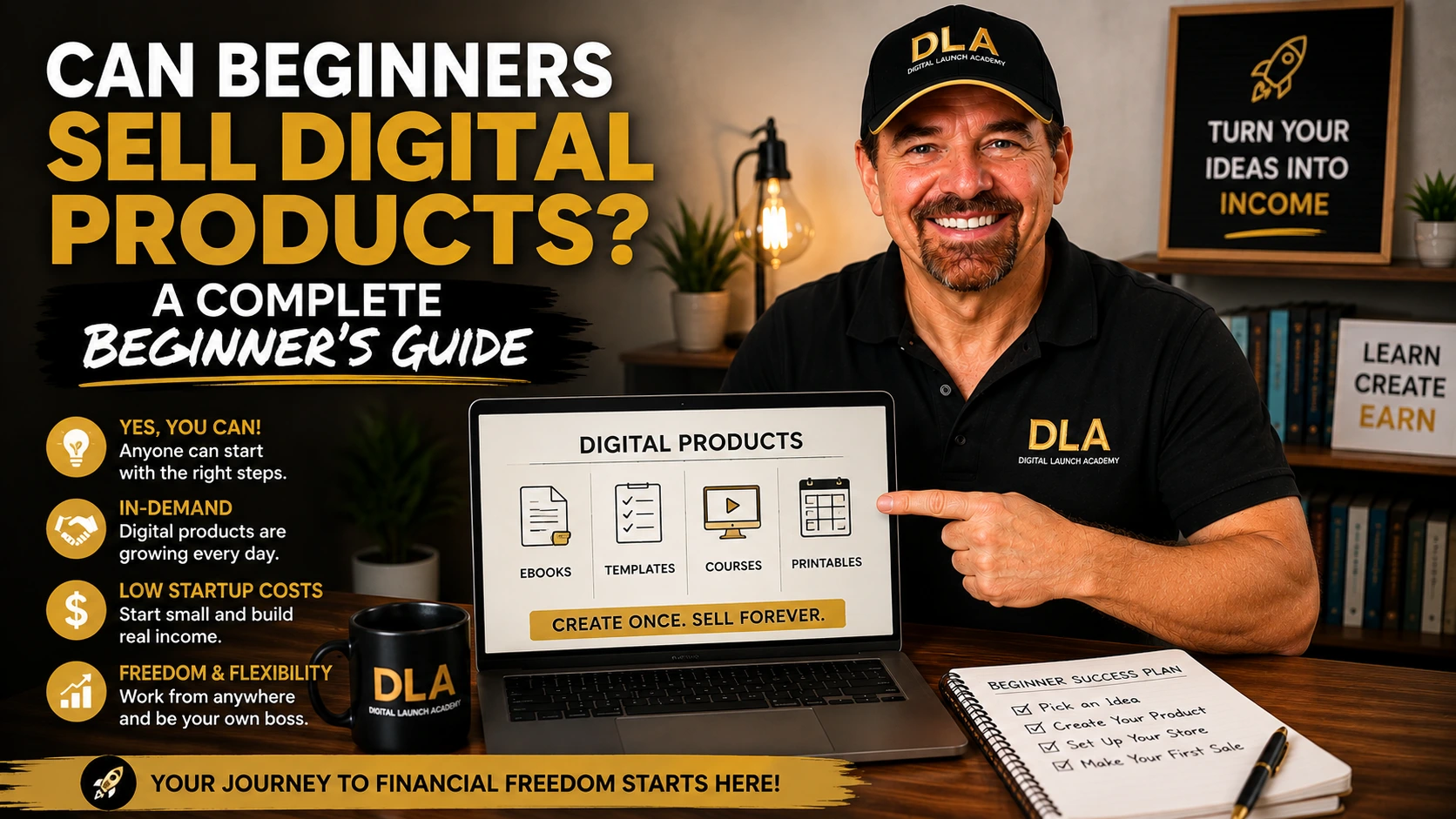
Can beginners sell digital products? Yes. You do not need to be a designer, a tech expert, or a social media star to get started. Many beginners successfully create and sell simple digital products such as weekly planners, budget trackers, cleaning checklists, meal planners, and job search templates.
The goal is not to make a huge online store overnight. Your first goal is much smaller: create one helpful download that solves one everyday problem for one type of person. That is a realistic place to start, even if Canva feels new and you have never sold anything online before.
Can Beginners Sell Digital Products Without Experience?
Can beginners sell digital products without experience? Absolutely. Everyone starts somewhere, and most successful digital product creators began with no design, marketing, or business background. Your first product does not need to be perfect. It only needs to solve one small problem for one specific person.
Many successful beginners start with simple digital products like checklists, planners, journals, trackers, templates, or printable worksheets. These products are quick to create, easy to update, and give you valuable experience as you learn what your customers need.
Instead of trying to create a large course or complicated membership, focus on one helpful digital product that you can finish and publish. Taking action and learning from real customers is far more valuable than waiting until everything feels perfect.
If you’re considering printables as your first product, take a realistic look at how much printables can make before setting your income expectations.
Start With a Small Product Idea
Can beginners sell digital products successfully? Yes, but many beginners get stuck because they try to create too much. They decide to make a complete life planner, a giant business course, or a 100-page ebook. That can drain your energy before you finish.
Instead, choose a product with one clear job. Think of it as a helpful tool, not a major project.
Here are a few beginner-friendly ideas:
A monthly bill payment tracker A weekly meal planning sheet with a grocery list A moving-house checklist A pet care record A simple reading log for children A job application tracker A holiday gift budget planner A daily medication checklist
The best idea depends on who you want to help. You do not have to choose a perfect niche, which simply means a specific group of people. Start with people whose needs you understand by reading my guide, How to Choose a Digital Product Niche for Beginners, before deciding what to create.
If you have worked in an office, a meeting notes template may make sense. If you enjoy gardening, a garden planning tracker may be easier to create.
Before making anything, finish this sentence:
“I want to help ___ do ___.”
For example:
“I want to help busy families plan weeknight meals.”
That sentence gives your product a clear purpose.
If you want to learn more about profitable digital product ideas, read our step-by-step guide on how to pick a profitable digital product idea today.
Keep Your First Product Easy to Use
A customer should understand what to do within a few seconds. Give your pages clear titles, enough writing space, and simple instructions. Avoid tiny text, crowded pages, and too many colors.
One good question to ask is: would someone feel relieved after using this? If the answer is yes, you are on the right path.
Take one small action: Pick one idea and write a one-sentence promise for it. Do not compare it to other people’s products yet.
Step 1: Create Your Product in Canva
Canva is a beginner-friendly design tool that lets you create documents by dragging and dropping text, shapes, and colors. You can start with the free version. If you’re new to Canva, read my guide, How to Make Digital Products With Canva and AI, to learn the basics before creating your first product. Open Canva and search for a format that fits your product. For a printable checklist or tracker, search for “US Letter document.” This is a common paper size in the United States. For a planner page, you can also search for “planner.”
Choose a simple layout. You can use a template for inspiration, but change the wording and make it fit your own product idea. Do not copy someone else’s design or sell a template as if you created every part of it from scratch.
Then build your first page:
Add a clear title at the top, such as Weekly Meal Plan. Add the sections your buyer needs, such as Monday through Sunday and a grocery list. Use one or two easy-to-read fonts. Pick two or three colors that look calm and clear together. Leave plenty of blank space for writing.
If writing feels hard, AI can help you create simple section ideas or instructions. For example, you could ask: “Give me seven simple meal-planning prompts for busy families.” Read the results carefully and rewrite them in your own voice. AI is a helper, not a replacement for your judgment.
If you’re new to using AI, ChatGPT can help you brainstorm ideas, write simple text, and overcome writer’s block while you stay in control of the final product.
When your page is ready, print it at home if possible. Look for cut-off text, cramped boxes, spelling mistakes, or areas that need more space. This simple test can save you from selling a file that is frustrating to use.
Take one small action: Create only the title and first section of your product today. You are not required to finish the whole design in one sitting.
Once you have a digital product ready to sell, comparing Etsy vs Gumroad for beginners can help you decide which platform is easier for you to start with.
Step 2: Turn It Into a Downloadable File
Once your design is complete, download it as a PDF from Canva. A PDF keeps your layout in place, so the customer sees the planner or checklist the way you designed it.
Use a clear file name. Instead of naming it “final-new-2,” use something like weekly-meal-planner.pdf. Clear names help both you and your customer stay organized.
If your product has several pages, check every page before downloading. Make sure headings are spelled correctly and that no text runs off the edge. If you offer a Canva template rather than a finished PDF, double-check that customers receive the correct template access instructions before you list it for sale.
You may want to include a short instruction page. For example, tell customers whether the product is designed to print, fill out on a tablet, or use as a Canva template. Be honest about what they are buying. Clear instructions reduce confusion and help your customers feel happy with their purchase.
Take one small action: Download your first draft as a PDF and open it on your computer or phone.
Step 3: Set a Simple Starting Price
New sellers often worry about finding the perfect price. There is no magic number. Your price should reflect how useful the product is, how much is included, and what similar simple items are commonly priced at.
For a small one-page printable, a low starter price can make sense. A bundle with several matching pages can usually be priced higher. If you’re unsure what to charge, read my guide, How to Price Digital Downloads Without Guessing, before publishing your product. You can adjust later, so do not let pricing stop you from publishing.
Do not price a product at zero just because you are a beginner. Your time, thought, and effort have value. At the same time, avoid charging a premium price for a very basic file. Start fairly, learn from customer response, and improve as you go.
Step 4: Write a Listing That Makes Sense
Explain what the product is, who it helps, what is included, and how the buyer will use it. If you’re not sure what to write, read my guide, Digital Product Sales Page Template Made Simple, to learn how to create a clear product listing that builds buyer confidence. For a meal planner, you might write: “This printable weekly meal planner helps busy families plan dinners and create a grocery list in one place.”
What Beginners Should Avoid
You do not need to make every common mistake yourself. Avoid using copyrighted characters, logos, song lyrics, or artwork you do not have permission to use. Do not download images from a search engine and place them in a product for sale.
You do not need to make every common mistake yourself. Many of these mistakes can be avoided by starting with a simple product. If you need ideas, read my guide, 9 Best Digital Products for Beginners to Create and Sell This Weekend, before choosing your first product.
Also avoid making promises your product cannot keep. A budget tracker can help someone organize expenses, but it cannot guarantee they will save a certain amount of money. Honest product descriptions build trust.
Many beginners also make the mistake of trying to create too many products at once. Start with one simple digital product, learn from the experience, and improve with each new product you create.
Finally, do not wait for confidence before you begin. Confidence usually comes after you complete a few small steps. Your first product may not be your best product. That is normal. It is proof that you started.
If you are still deciding what type of side hustle to start, explore these low cost side hustles for beginners for simple ideas you can start without a large investment.
Conclusion:
Can beginners sell digital products? Absolutely. You do not need years of experience or advanced technical skills to get started. You only need one helpful idea and the willingness to take the first small step.
At Digital Launch Academy, we believe the easiest path is one small finished product at a time. Open Canva, choose one helpful idea, and make the first page today. A simple page you complete is far more valuable than a perfect idea that stays in your head.
If Etsy is the platform you want to start with, follow my guide on how to set up an Etsy digital shop step by step.

Don’t Know What to Create?
Most beginners don’t fail because they lack talent.
They fail because they’re overwhelmed by too many ideas.
Download the Free Niche Planner Checklist and discover a digital product idea you can actually build.
