If you have ever stared at a blank Canva page and thought, I have no idea what to make, this is for you. Learning how to use AI for printables can save you time, calm the overwhelm, and help you create simple digital products without being a designer.
I understand why this feels scary at first because I was there too. When I first started, I thought I needed fancy software, design talent, and hours of free time. You do not. For most printable products, AI can help you come up with ideas, write the content, organize the pages, and even plan your product description. You still stay in control. AI just helps you get moving.
How to use AI for Printables Without Making it Complicated
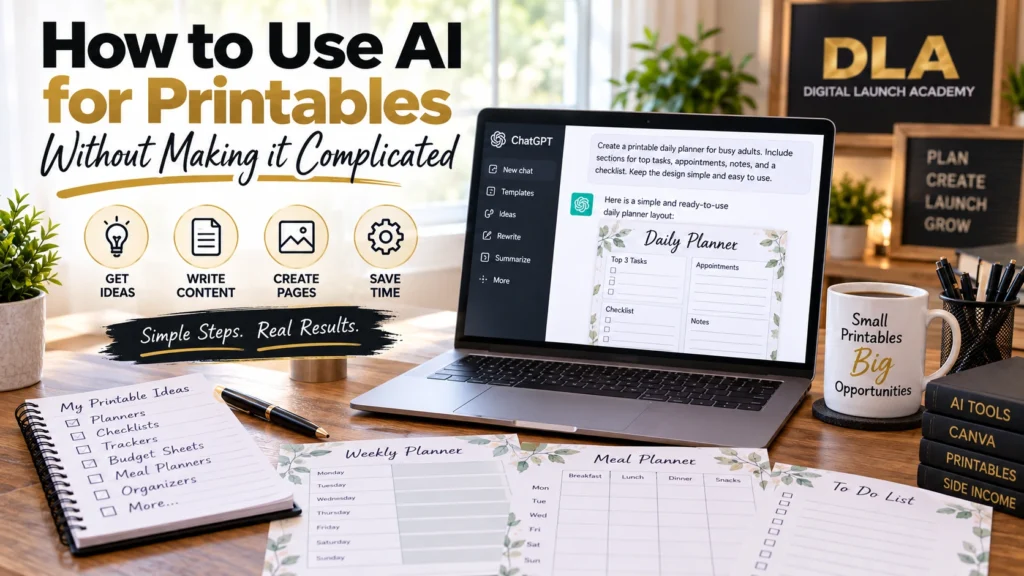
The easiest way to think about AI is this: it is your helper, not your boss. It gives you a starting point. You decide what to keep, what to change, and what to leave out.
For beginners, the best use of AI is not making everything from scratch in one click. That usually gives messy results. The smart way is to use AI for small jobs, one step at a time, then build your printable in Canva.
Here is the simple workflow:
- Pick one printable idea.
- Ask AI for page ideas or content.
- Clean up the wording.
- Place it into a Canva template.
- Check it for accuracy and readability.
- Save it as a PDF.
That is it. No coding. No expensive programs. No advanced tech skills.
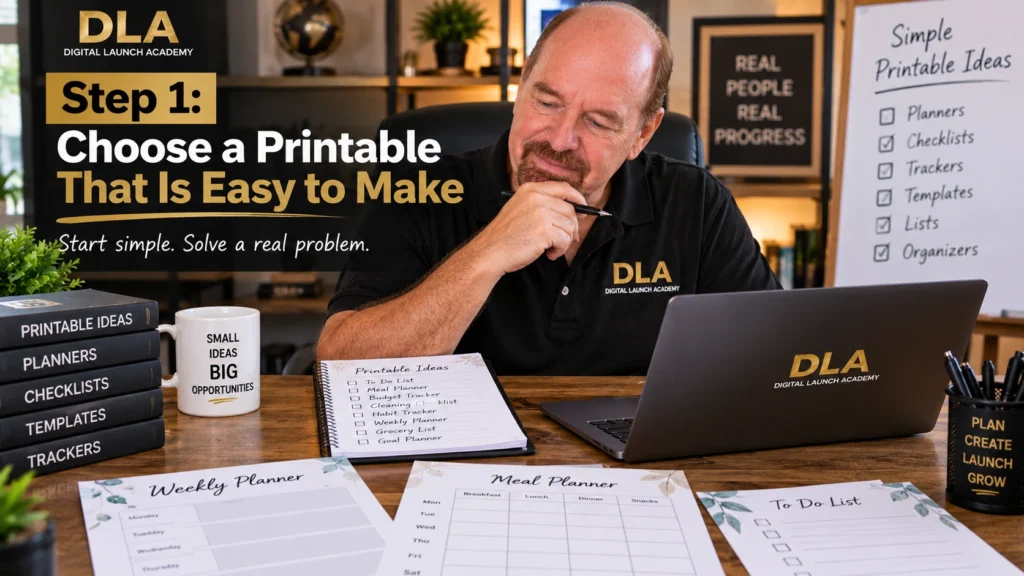
Step 1: Choose a Printable That is Easy to Make
If you are brand new, do not start with a 75-page planner. Start small. A simple printable is faster to finish and easier to sell.
Good beginner printable ideas include:
- Daily planners
n- Habit trackers
- Meal planners
- Grocery lists
- Budget sheets
- Cleaning checklists
- Password trackers
- Kids chore charts
- Journal prompts
- Gratitude pages
These work well because they are simple, useful, and easy to customize.
A good first product usually solves one small problem. That matters more than making something huge.
Step 2: Ask AI for Printable Ideas in Your Niche
Once you know the general topic, use AI to narrow it down.
You do not need a perfect prompt. Keep it plain and specific. For example, you can type:
Simple AI prompts to start with
- Give me 20 printable product ideas for busy moms.
- Give me 15 printable tracker ideas for retirees.
- What are some simple printable products for people trying to save money?
- List beginner-friendly printable ideas for teachers.
If the first answer feels too broad, ask again. Try:
- Make these ideas simpler.
- Which 5 ideas are fastest to create in Canva?
- Which of these would work as a one-page printable?
This is where AI really helps. It gives you a starting point so you are not stuck guessing.
Step 3: Use AI to Write the Content for your Printable
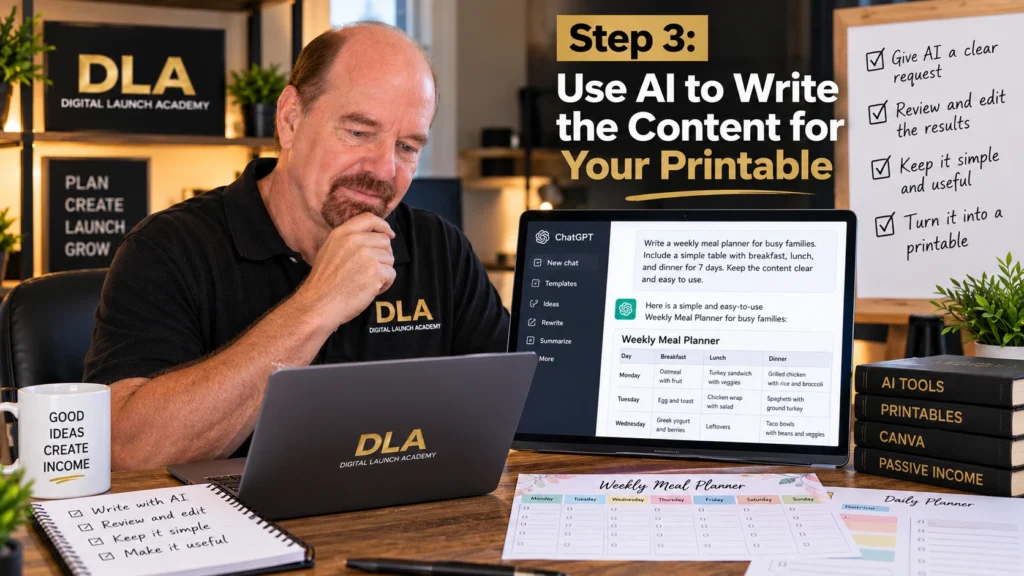
After you choose your product, ask AI to help with the words that go on the page.
Let us say you are making a meal planner. You can ask AI to create headings, sections, and helpful prompts. For example:
- Create simple headings for a weekly meal planner.
- What sections should I include on a grocery list printable?
- Write 20 journal prompts for gratitude.
- Create a 30-day habit tracker list for healthy living.
If you are making worksheets, checklists, or guided pages, this step can save a lot of time.
But here is the important part: do not copy and paste everything without checking it. Read through every line. Fix anything that sounds awkward, too wordy, or confusing. AI can be helpful, but it is not perfect.
If you want to see more ways AI can help with planning, content, and growing a beginner business, read my guide to AI for online business.
Step 4: Tell AI to Organize the Printable for you
This is one of the easiest ways to use AI for printables. Instead of trying to figure out page layout in your head, let AI suggest a structure.
You can ask:
- Organize a 10-page budget planner in a simple order.
- What pages should come first in a self-care printable bundle?
- Create a clean layout plan for a one-page daily planner.
AI might suggest something like a cover page, monthly overview, weekly planner, expense tracker, and notes page. That helps you see the product before you build it.
You are not asking AI to design the pages. You are asking it to help you think clearly.
Step 5: Build the Printable in Canva
Now take your AI ideas into Canva. This is the part where your product starts to look real.
If you are a beginner, do not design from a blank page unless you want to. Use a simple template and change the text, colors, and sections.
What to do inside Canva
- Open Canva and search for a template like planner, checklist, worksheet, or tracker.
- Pick a clean design with easy-to-read fonts.
- Replace the sample text with the content you created using AI.
- Change colors if you want, but keep them soft and simple.
- Add extra pages if needed.
- Make sure each page has enough space to write.
Try not to overdecorate it. Many beginners think more design means more value. Most buyers want printables that are clean, useful, and easy to print at home.
Step 6: Use AI to Help Write Titles and Page Names
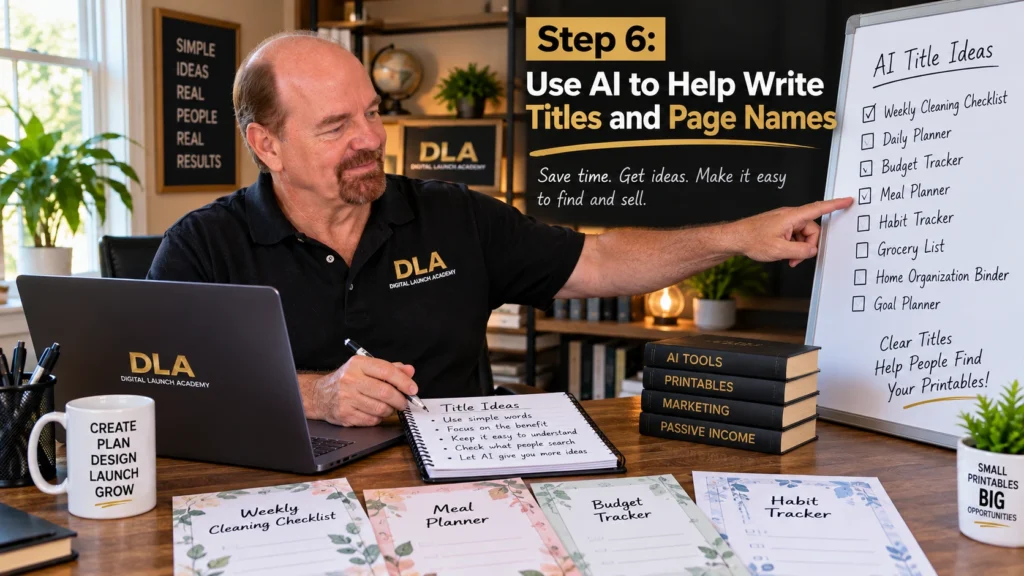
Sometimes the hardest part is naming your product. AI can help with that too.
Try prompts like:
- Give me 10 product title ideas for a printable meal planner.
- Create simple page names for a budgeting workbook.
- What should I call a printable habit tracker bundle?
This does not mean you have to use the exact title AI gives you. It just helps you get past the blank-page feeling.
Keep your titles clear. A title like Weekly Budget Planner Printable is usually better than something clever but vague.
Step 7: Check the Printable Carefully
Before you save and sell anything, slow down here. This step matters.
AI can make mistakes. It can repeat itself. It can use wording that sounds odd. It can even leave out something important.
Check these things before you export
- Spelling and grammar
- Dates, numbers, and labels
- Enough writing space on the page
- Font size that is easy to read
- Consistent wording across all pages
- No strange AI phrases or repeated lines
If your printable includes advice about health, money, or legal topics, be extra careful. AI should not replace expert knowledge in those areas.
Step 8: Use AI to Write Your Product Description
Once your printable is done, you can also use AI to help write the sales description.
This is helpful if writing feels hard for you.
Try prompts like:
- Write a simple product description for a printable habit tracker.
- Write Etsy listing bullet points for a weekly meal planner printable.
- Explain the benefits of a budget printable in plain language.
Then edit the result so it sounds natural and clear. Keep the focus on what the buyer gets and how it helps them.
For example, instead of saying it is beautifully designed, say it helps someone plan meals, save time, or stay organized.
Common Mistakes When Learning how to use AI for Printables
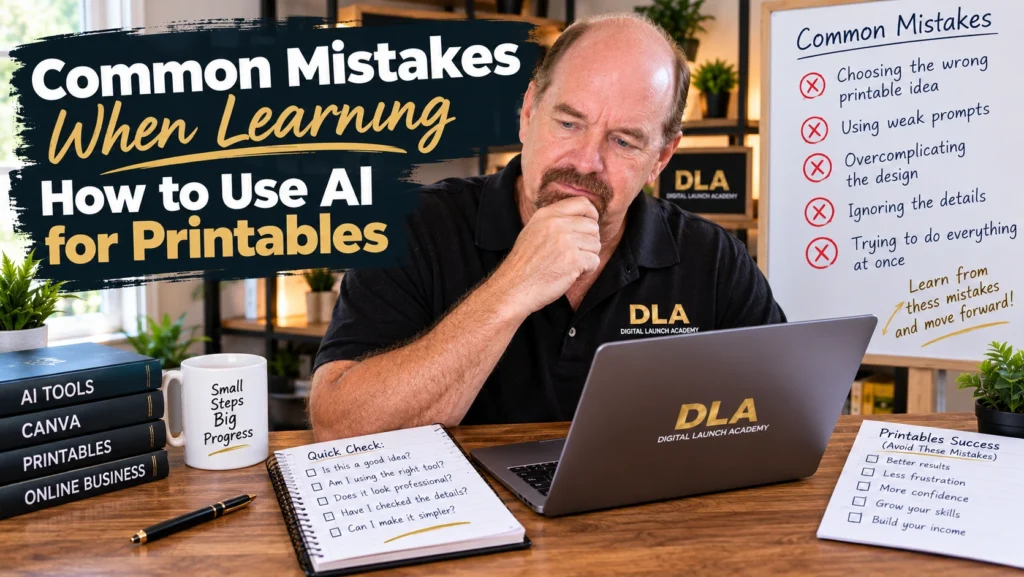
This part can save you a lot of frustration.
The first mistake is asking AI to do too much at once. If you type, Make me a printable business, the result will usually be messy. Break the job into smaller steps.
The second mistake is trusting AI too quickly. Always review what it gives you. You want simple, useful pages, not fluff.
The third mistake is creating printables that look pretty but are hard to use. If there is no room to write, if the font is tiny, or if the layout feels busy, buyers will notice.
The fourth mistake is making too many products before finishing one. Start with one small printable. Get it done. That builds confidence.
A Simple Example you can Copy
Let us say you want to make a daily planner.
Here is the full beginner process
- Ask AI: Create sections for a one-page daily planner.
- Pick the best ideas, such as top priorities, schedule, notes, water tracker, and to-do list.
- Ask AI: Give me 10 title ideas for a daily planner printable.
- Choose one title you like.
- Open Canva and find a daily planner template.
- Replace the sample text with your chosen sections.
- Adjust spacing so it is easy to write on.
- Proofread everything.
- Save as a PDF.
- Ask AI to help write your product description.
That is a real product. You do not need weeks to make it. You just need one focused session and a simple plan.
The Best Way to Keep AI Helpful, Not Overwhelming
Use AI like a helpful assistant sitting beside you. Ask one question. Take one answer. Build one page at a time.
If you try to make it do everything, it can feel confusing fast. If you use it for idea generation, writing support, page planning, and product descriptions, it becomes much easier to manage.
That is why so many beginners do well with this approach. You are not trying to become a tech expert. You are simply using a tool to make printable creation faster and less stressful.
If this still feels new, that is okay. New things often feel clumsy at first. Keep your first printable small, simple, and useful. A finished simple product will teach you more than a half-done fancy one ever will. When you take it step by step, this really can become something you are proud to sell.
Don’t Know What to Create?
Most beginners don’t fail because they lack talent.
They fail because they’re overwhelmed by too many ideas.
Download the Free Niche Planner Checklist and discover a digital product idea you can actually build.How to Make Digital Products With Canva and AI
