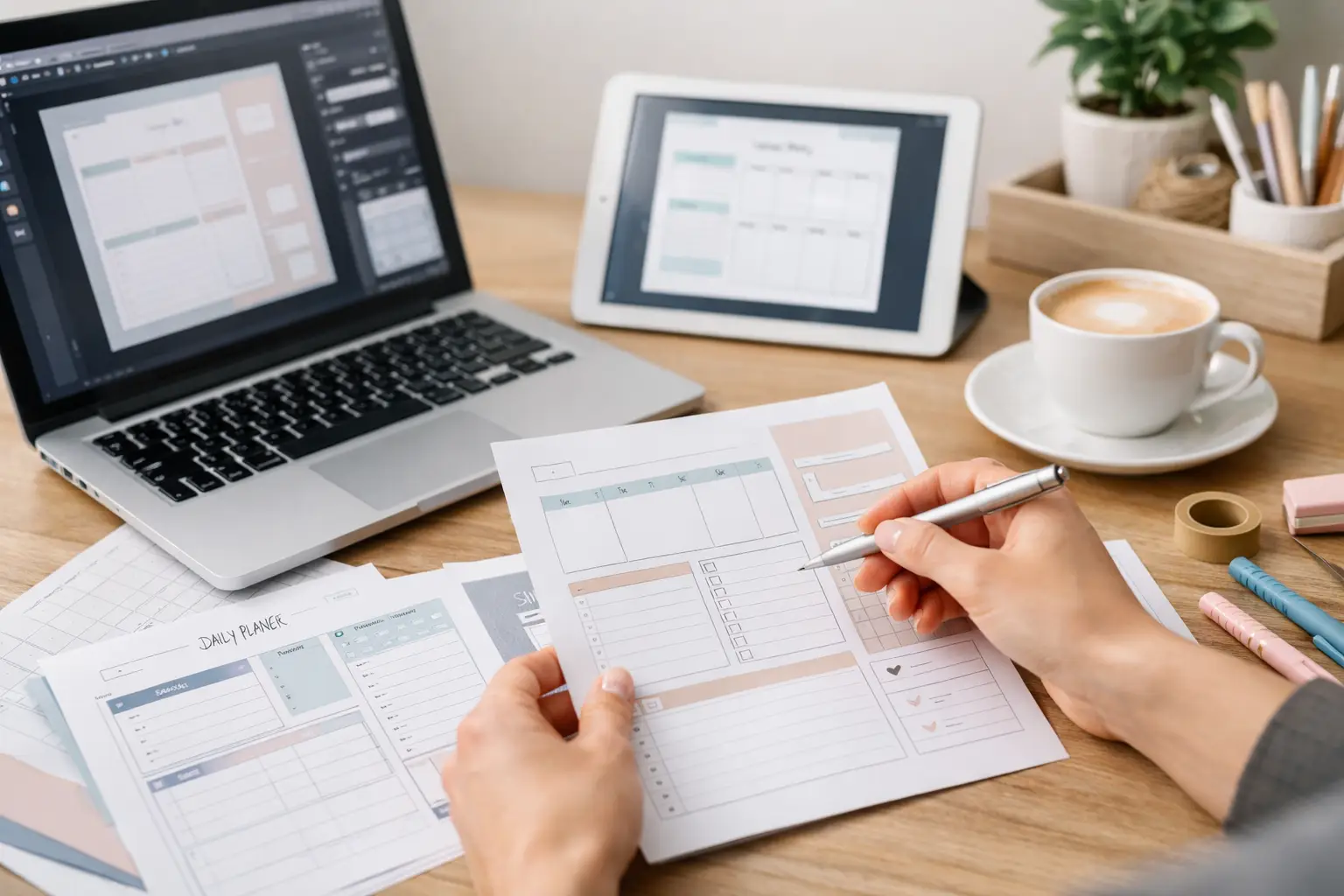
A printable product can start with one useful page. Not a giant workbook. Not a fancy website. Just one page that helps someone organize a task, remember something, or feel less stressed. If you want to make your first printable product, this is the simplest place to begin.
I understand the fear of staring at a blank screen and wondering what button to press. When I first started, I thought I needed design talent and expensive software. You do not. A basic computer, an internet connection, and a free Canva account are enough for your first project.
Printables are often the first digital product beginners create when learning how to make digital products with Canva and AI. In this tutorial, I’ll walk you through creating your first one, step by step.
Why Start With a Simple Printable?
A printable is a digital file that a buyer downloads and prints at home. Think of a meal planner, medication tracker, chore chart, grocery list, or daily to-do sheet.
Simple products are a smart first choice because they have a clear job. They do not need complicated writing, videos, shipping, or special equipment. Your goal is not to make the biggest product in your category. Your goal is to finish a helpful product and learn the process once.
A one-page printable is also easier to improve. After you make it, you may decide to add more pages later. But do not begin there. Finishing builds confidence.
Step 1: Pick One Small Problem to Help With
Start with something you understand from everyday life. The best first ideas are often ordinary problems people deal with every week.
Ask yourself: “What do people need help keeping track of?” You might choose a weekly meal plan for busy parents, a water tracker for adults building healthier habits, or a cleaning checklist for retirees who want an easier routine.
Keep the person and problem narrow. “A planner for everyone” is too broad. “A simple weekly meal plan for busy families” is much easier to create.
Here are a few beginner-friendly ideas:
- Weekly meal planner
- Daily medication tracker
- Grocery shopping list
- Monthly bill payment checklist
- Pet care routine sheet
- Kids’ morning chore chart
- Simple appointment tracker
- Holiday gift planning list
Choose the idea that feels easiest, not the one you think will make the most money. You are learning to create, finish, and share. That matters most right now.
Step 2: Decide What Goes on the Page
Before opening Canva, write down the sections your printable needs. Use plain paper if that feels more comfortable. This small step saves you from getting lost in design choices later.
For example, a weekly meal planner could include the days Monday through Sunday, spaces for breakfast, lunch, and dinner, plus a small grocery list area. That is enough.
A medication tracker might have the medicine name, time of day, dosage, and checkboxes for each day of the week. Keep it easy to read. A printable should help someone take action quickly, not make them study instructions.
Use this simple rule: one page, one main purpose. If you find yourself adding lots of sections, save those ideas for a second product.
Make It Useful Before Making It Pretty
A clean page that works is better than a beautiful page that confuses people. Large text, clear labels, and enough writing space are more valuable than fancy decorations.
Think about the person printing it. Will they have room to write? Can they read it without squinting? Does the page still make sense in black and white? These questions will guide you better than chasing design trends.
Step 3: How to Open Canva and Choose the Right Size
Go to Canva and sign in or create a free account. On the home screen, use the search bar and type “US Letter.” Choose the size that says 8.5 x 11 inches.
This is the standard paper size for most home printers in the United States. Starting with the right size means your buyer will not have to resize the page before printing.
You may see many templates. It is okay to use one as a starting point, especially if you feel nervous. Pick a clean template with plenty of open space. Then change the words and sections so the product becomes your own useful tool.
Do not spend an hour comparing templates. Give yourself ten minutes to choose one. A simple decision keeps your project moving.
Step 4: Make Your First Printable Product With Canva
Now add your title and sections. Click on existing text in a template to replace it. If you started with a blank page, use the Text button in Canva’s side menu to add a heading and smaller labels.
For a weekly meal planner, your title could be “My Weekly Meal Plan.” Add seven boxes or rows for the days of the week. Canva has an Elements section where you can search for “table,” “grid,” or “rectangle.” Click one to place it on your page.
You do not need to make everything from scratch. Use basic shapes and text boxes. Copy and paste a box after you create the first one so the page stays neat.
Try these beginner design choices:
- Use one or two easy-to-read fonts.
- Choose black, dark gray, or dark blue for main text.
- Leave white space around each section.
- Use light lines so the page does not look crowded.
- Avoid tiny text and pale colors.
If a Canva tool feels confusing, skip it. Your first printable does not need artwork, moving parts, or special effects. Simple is not a weakness. Simple is often what buyers want.
Step 5: Check It Like a Buyer Would
Before you download anything, pause and look at your page as if you paid for it. Read every word slowly. Check that days of the week are spelled correctly, lines are straight, and no text is cut off near the edge.
Then ask a practical question: “Would I know what to do with this page the moment I printed it?” If the answer is yes, you are close.
It also helps to print one copy at home. This is the best way to catch problems. You may notice that a writing space is too small or a light gray line nearly disappears on paper. Fixing these small things now makes your product more helpful.
If you do not own a printer, zoom out in Canva and check the full page view. You can also ask a friend or family member to look at it for one minute. Ask only one question: “Is anything hard to read or understand?”
Step 6: Download the Printable as a PDF
When your page looks right, click the Share button in the top right corner of Canva. Then choose Download.
For file type, select PDF Print. This is usually the best choice for a printable because it keeps your text and lines clear when someone prints it. Click Download and save the file in a folder you can find again.
Name the file clearly. Instead of calling it “design-final-new-2,” use a name like “Weekly-Meal-Planner.pdf.” Clear file names help you stay organized as you create more products.
Open the PDF after it downloads. This final check matters. Make sure it opens correctly and looks like the page you designed.
Step 7: Give It a Clear Name and Simple Description
Your product needs a name that tells buyers exactly what it is. Avoid clever names that make people guess. “Weekly Meal Planner Printable” is clear. “Get Your Life Together Sheet” may sound fun, but a buyer may not know what they are getting.
Write a short description in everyday words. Explain who the printable helps and what is included. For example:
“Plan breakfast, lunch, and dinner for the week with this simple one-page meal planner. Includes space for a grocery list. Download, print, and write on it at home.”
That is enough for a first listing. You do not need a long sales message. Be honest about what the buyer receives. If it is one page, say it is one page. If it is a PDF download, say that too.
What to Do When You Feel Stuck
Feeling stuck does not mean you are bad at technology. It usually means you are trying to make too many decisions at once. Go back to the smallest next step.
Do not ask, “How do I build a whole online business?” Ask, “What title will I put at the top of this page?” Then do that one thing.
If you make a mistake in Canva, you can undo it. If your first page looks plain, that is okay. The first printable is practice and proof that you can create something real. Digital Launch Academy teaches this same calm approach because beginners do better when they stop trying to get everything perfect on day one.
Your printable does not need to impress everyone. It only needs to make one everyday task a little easier for the person who downloads it. Open Canva, choose one small idea, and let today’s finished page be the beginning of something you are proud to sell.

Don’t Know What to Create?
You could make your first printable product today.
Most beginners don’t fail because they lack talent.
They fail because they’re overwhelmed by too many ideas.
Download the Free Niche Planner Checklist and discover a digital product idea you can actually build.
