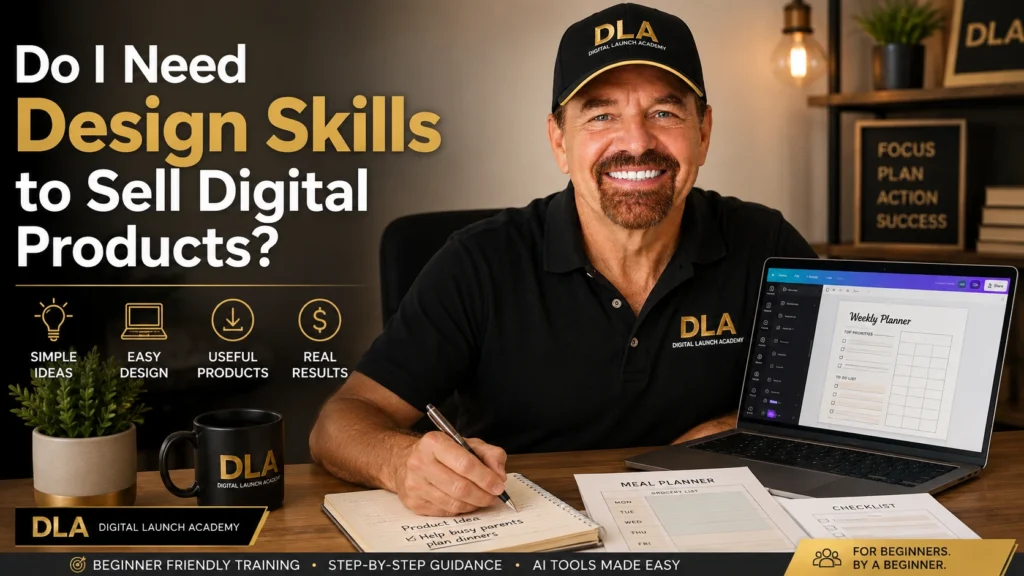
You have a useful idea for a planner, checklist, tracker, or guide. Then one thought stops you: do I need design skills before I can make it look good enough to sell?
No. You do not need to be a graphic designer. You do not need expensive software, a fancy computer, or years of creative experience. You need a simple product that helps a real person, plus a clean and easy way to put it together.
That is a much smaller job than “becoming a designer.” And it is something you can learn one small step at a time.
Do I Need Design Skills? No You Need to Create a Digital Product
A digital product is a file someone can download and use. It might be a weekly meal planner, a budget tracker, a moving checklist, a classroom worksheet, or a set of social media templates.
For most beginner products, good design means three simple things:
- The page is easy to read.
- The customer can quickly understand what to do.
- The product looks neat and consistent.
That is it. You are not trying to create a magazine cover or a logo for a large company. You are creating a helpful tool that makes someone’s day a little easier.
A budget tracker, for example, does not need lots of decorations. It needs clear labels, enough space to write, and a layout that helps the customer see where their money is going. A simple page that works well is more valuable than a busy page that looks impressive but feels confusing.
Your action: Write down one problem your product will help solve. Keep it simple, such as “help busy parents plan dinners” or “help new dog owners remember vet appointments.”
Why Simple Designs Often Sell Better
Beginners sometimes think a product must be colorful, detailed, and packed with extras to be worth buying. But too much design can make a product harder to use.
Think about a checklist. If the words are tiny, the colors clash, and there are decorations around every edge, the customer may not know where to look first. A clean checklist with a clear title and roomy boxes feels calmer. It is easier to print, easier to use, and easier to understand.
Simple also gives you a helpful advantage. You can finish your product faster. Instead of spending three days choosing fonts, you can focus on whether the content is useful.
This does not mean your product should look plain or careless. It means every part should have a purpose. Use color to guide the eye. Use headings to organize information. Leave empty space so the page can breathe.
Your action: Look at one printable you use at home, such as a calendar or worksheet. Notice what makes it easy or hard to read. Use that observation in your own product.
A Beginner-Friendly Way to Design in Canva
Canva is a simple online design tool with a free version. You can use it to create pages, add text, choose colors, and download your finished file. You do not need to start with a blank page.
The easiest path is to begin with a template. A template is a ready-made design layout. You can change the words, colors, and pictures without having to decide where everything should go.
Step 1: Choose the right page size
Before you begin, decide how your customer will use the product. If they will print it at home in the United States, Letter size is usually a good choice. That is 8.5 by 11 inches.
If you are making a phone wallpaper, social media template, or digital journal page, choose a size that fits that use instead. Starting with the right size helps you avoid fixing the whole design later.
In Canva, type the size you want into the search bar. You can also choose a ready-made option, such as “US Letter Document.”
Step 2: Start with one simple template
Search Canva for words related to your product. For example, try “weekly planner,” “budget worksheet,” “habit tracker,” or “checklist.” Choose a template with a layout you already like.
Do not choose a template just because it has lots of effects. Choose one with clear sections and readable text. You can always remove parts you do not need.
When you open the template, click on the text boxes to replace the sample words with your own. Change only what helps your customer. You do not have to change every detail.
Step 3: Use fewer choices
Too many choices can make design feel stressful. Give yourself a few simple rules:
- Use no more than two fonts.
- Choose two or three colors.
- Keep the same heading style on every page.
- Use one kind of icon or illustration style.
For example, you might use a dark blue for headings, light blue for small sections, and black or dark gray for regular text. That is enough to make your product look organized.
You can use Canva’s color palettes or copy colors already used in the template. There is no prize for starting from scratch.
Your action: Open Canva and search for one template related to your product idea. Do not edit it yet. Just save it and notice which parts make it easy to read.
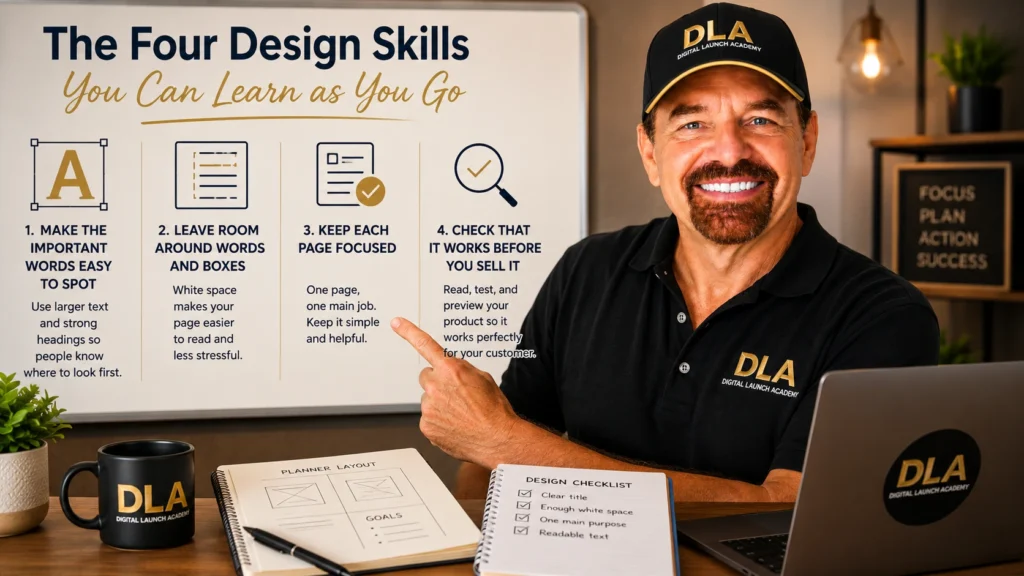
The Four Design Skills You Can Learn as You Go
You do not need a design degree, but you will get better with a few basic habits. The good news is that these habits are practical, not complicated.
1. Make the Most Important Words Easy to Spot
Your title should be bigger than the rest of the text. Section labels should stand out from small instructions. This helps the customer know where to look first.
A good test is to zoom out. Can you still spot the title and main sections? If not, make them larger or darker.
2. Leave Room Around Words and Boxes
Empty space is not wasted space. It makes a page feel less crowded. Give text room around the edges. Leave enough space for people to write if the product is a printable planner or tracker.
If you feel tempted to fill every blank area with a flower, line, or quote, pause. The blank space may be helping more than you think.
3. Keep Each Page Focused
One page should do one main job. A daily planner page can include a schedule, top priorities, and notes. It does not also need a monthly budget, recipe ideas, and a long list of affirmations.
When a page has too many jobs, the customer may feel overwhelmed. If you have more helpful content, create another page.
4. Check That it Works Before You Sell it
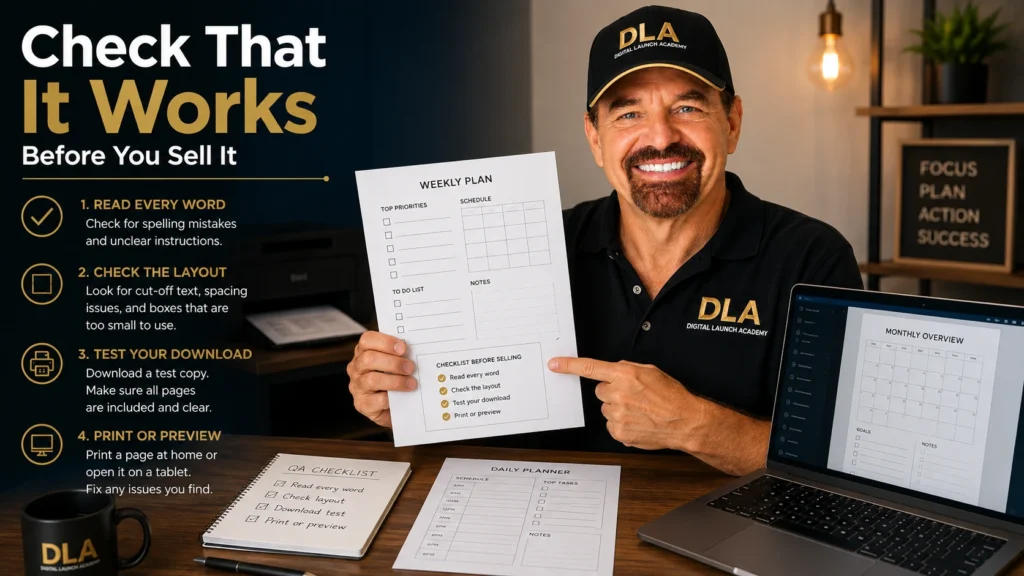
Read every word slowly. Look for spelling mistakes, cut-off text, and boxes that are too small to use. Then download a test copy.
If it is meant to be printed, print one page at home. If it is meant to be used on a tablet, open it on a tablet if possible. You may notice a problem that was not obvious on your computer screen.
Your action: Pick one page of your product and check these four things: clear title, enough empty space, one main purpose, and readable text.
When You May Need More Help With Design
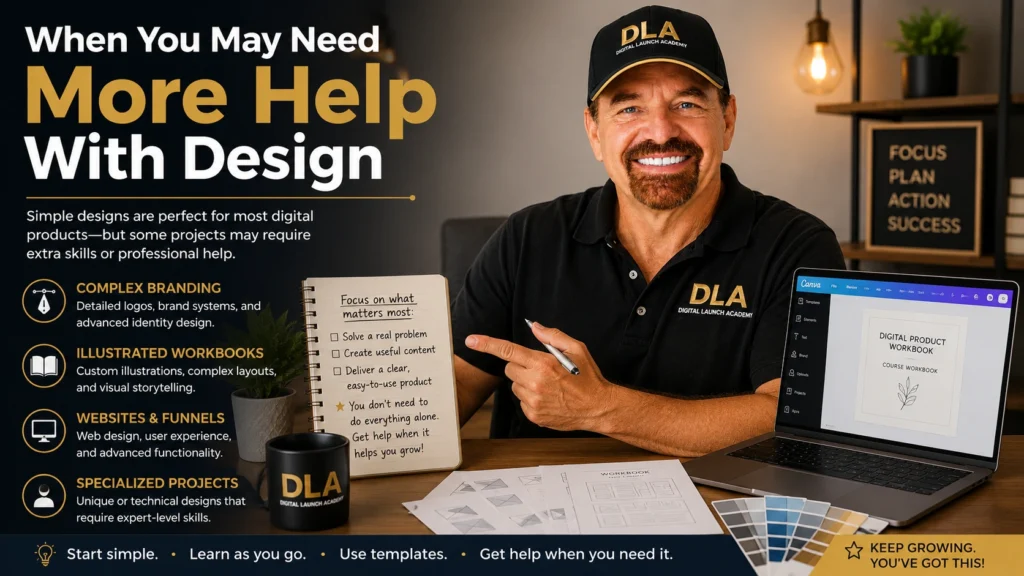
There are times when design matters more. If you want to create a detailed brand logo, a complicated illustrated workbook, or a full website, you may eventually want extra training or professional help.
But do not let a future need stop your first product. Your first product is for learning. It teaches you how to choose an idea, make something useful, finish it, and put it in front of buyers.
You can also use ready-made Canva templates, simple elements, and beginner-friendly AI prompts to speed up the process. These tools are not cheating. They are support tools, much like using a recipe when you are learning to cook.
The trade-off is simple: templates save time, but you still need to make the product yours. Change the wording, make sure the pages solve your customer’s problem, and check that the final result is clear. A copied template with no useful content will not build trust.
Your action: Decide what you can make yourself today and what can wait until later. Your first product does not have to include everything.
Your First Product Can Be Simple and Useful
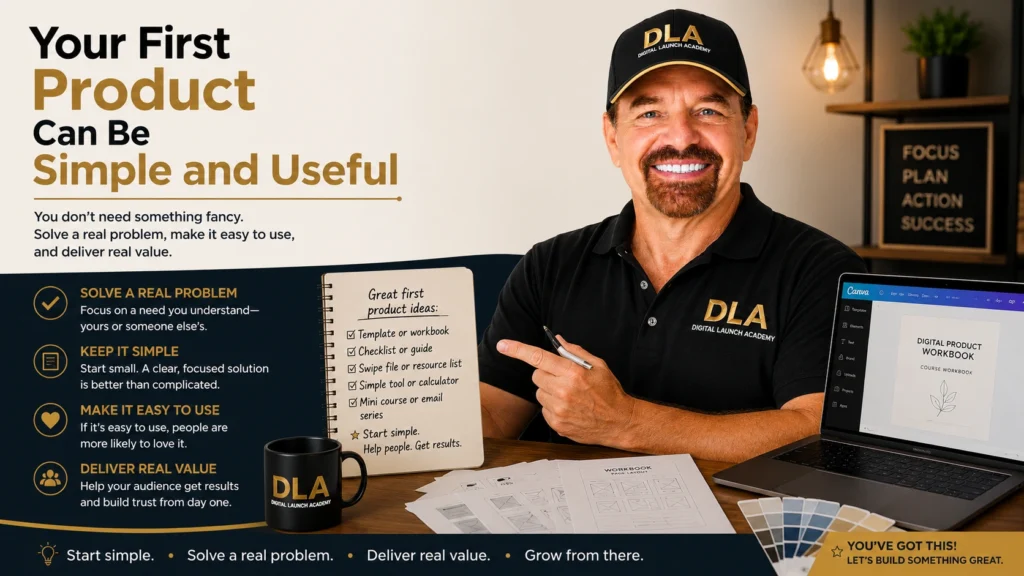
People who buy digital products are usually looking for something useful, clear, and easy to use—not a product filled with complicated design. They are looking for help. They want the meal planner that saves them from asking “What is for dinner?” every night. They want the moving checklist that helps them remember small but important tasks. They want the budget page that gives them a clearer picture of their money.
If your product solves one problem clearly, you are already on the right track. Your confidence will grow each time you finish a page, test an idea, and learn what works.
Start with one page today. Choose a template, replace the sample text, and make it useful for one person. You do not need design skills before you begin. You build the skills by beginning.
If you are still deciding what kind of product to create, read Digital Products for Beginners: The Ultimate Guide to What to Create and Sell Online for a step-by-step look at digital product options and how to choose one that fits you.
Don’t Know What to Create
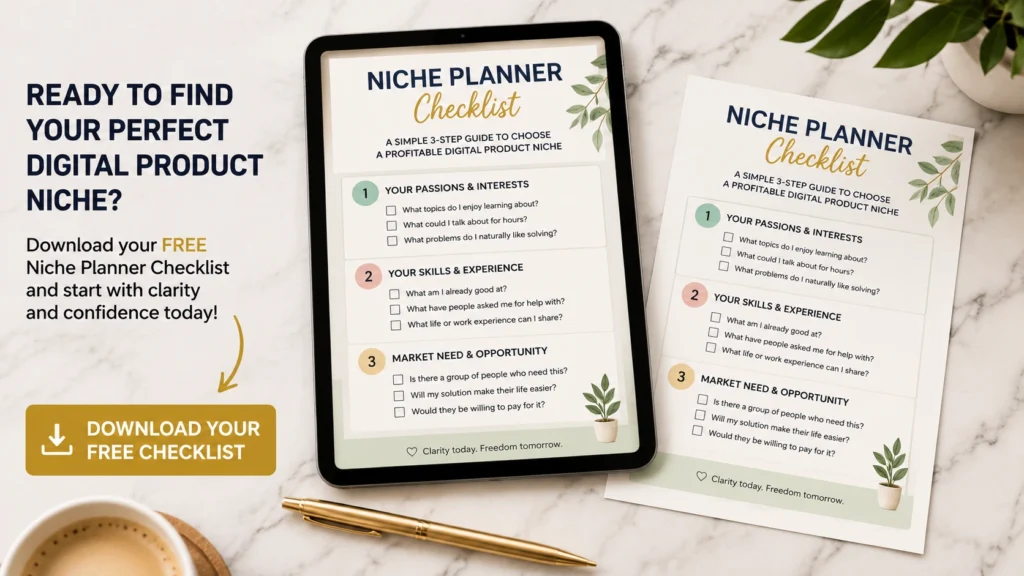
Most beginners don’t fail because they lack talent.
They fail because they’re overwhelmed by too many ideas.
Download the Free Niche Planner Checklist and discover a digital product idea you can actually build.
