A blank page can make a simple idea feel much harder than it is. ChatGPT for beginners gives you a helpful starting point when you want to create a planner, checklist, tracker, template, or short guide to sell online. You do not need to be a writer, a designer, or a tech expert. You just need one useful idea and a willingness to take one small step at a time.
ChatGPT is an AI writing tool. You type a question or request into a chat box, and it gives you a written response. Think of it like a patient brainstorming helper. It can suggest ideas, organize your thoughts, write a rough first draft, and help you improve wording.
It cannot replace your own judgment. You are still the person who chooses what is helpful, accurate, and right for your audience. That is good news. You stay in control.
What ChatGPT Can Help You Create
For a first digital product, keep things simple. You do not need to write a 100-page ebook. A small product that solves one clear problem is often easier to finish and easier for a customer to use.
ChatGPT can help you create items such as:
- A weekly meal planner for busy families
- A daily habit tracker for people building healthy routines
- A moving checklist for first-time renters
- A budget worksheet for people saving for a goal
- A simple guide with tips for organizing a home office
- Social media caption ideas for a local business owner
The best product ideas are practical. Ask yourself, “What task could I make easier for someone?” Maybe you have experience with gardening, caregiving, budgeting, teaching, travel, crafts, or staying organized. You do not have to be the world’s top expert. You only need to create something clear and useful for a person who is a few steps behind you.
Your simple action: Write down three everyday problems you understand well. Do not judge the ideas yet. Just get them on paper.
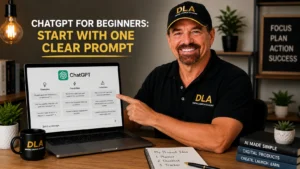
ChatGPT for Beginners: Start With One Clear Prompt
A prompt is simply what you type into ChatGPT. The clearer your prompt is, the more useful the response will usually be.
You do not need fancy words. In fact, plain language works very well. Give ChatGPT a role, explain who the product is for, and say exactly what you want it to create.
Step 1: Open a New Chat
Open ChatGPT and start a new conversation. Look for the message box at the bottom of the screen. This is where you type your request.
If the screen feels unfamiliar, that is completely normal. You only need to focus on one thing: the message box. You are not going to break anything by asking a question or trying again.
Step 2: Use This Simple Product-Idea Prompt
Copy and paste this prompt into the message box:
> I want to create a simple digital product for [type of person]. They struggle with [problem]. Give me 10 beginner-friendly product ideas, such as checklists, planners, trackers, templates, or short guides. Keep every idea simple enough to create in Canva.
Replace the words in brackets with your own details. For example, you could write:
> I want to create a simple digital product for busy parents. They struggle with planning easy weekday meals. Give me 10 beginner-friendly product ideas, such as checklists, planners, trackers, templates, or short guides. Keep every idea simple enough to create in Canva.
Read the ideas slowly. You are not looking for the perfect idea. Look for one that feels useful and manageable. A “Weekly Family Meal Planner” is a much better first project than a huge cookbook with 100 recipes.
Step 3: Choose One Small Product
Pick one idea that can fit on one to five pages. This helps you finish instead of getting stuck halfway through.
For example, a meal-planning product could include a weekly calendar, a grocery list, a notes section, and a page of simple dinner ideas. That is already useful. You can always create a larger version later.
Your simple action: Choose one product idea and write its name at the top of a page. That is your project for now.
Turn Your Idea Into a Simple Outline
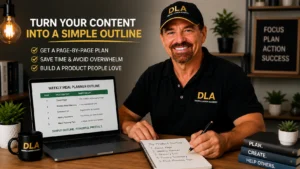
Once you know what you are making, ask ChatGPT to organize it. An outline is a basic plan of what goes on each page. It removes the guesswork before you open Canva.
Step 4: Ask for a Page-by-Page Plan
Use this prompt:
> Create a simple page-by-page outline for a [name of product] for [audience]. Make it 3 to 5 pages long. Tell me what should go on each page. Use clear, helpful language and keep it easy for beginners.
For a weekly meal planner, ChatGPT might suggest:
- A cover page with the product title
- A weekly meal planning page
- A grocery list page
- A pantry inventory page
- A page with quick meal-planning tips
This is a draft, not a rule. If you only want three pages, that is fine. If one suggested page does not make sense, remove it. Your customer does not need extra pages. They need pages they will actually use.
Your simple action: Copy the outline into a document, notebook, or notes app. This is your product plan.
Use ChatGPT to Write Helpful Content
Now you can create the words for your product. Keep the language friendly and easy to scan. A planner or checklist should not feel like homework.
Step 5: Write One Page at a Time
Do not ask ChatGPT to create an entire product all at once. Working one page at a time makes the process easier to review and improve.
Try this prompt:
> Write short, friendly text for page 5 of my weekly meal planner. The page is called “Five Easy Meal Planning Tips.” Write five tips for busy parents. Use simple words. Keep each tip to one or two sentences.
If the first answer feels too long, say so. You can type:
> Make this shorter and easier to read.
Or:
> Rewrite this for someone who feels overwhelmed and has very little time.
This is one of the most useful parts of using AI. You can ask for changes without starting from scratch. Treat the response as a rough draft you can shape, not as something you must use word for word.
Step 6: Check Every Detail Before You Use It
ChatGPT can sometimes give incorrect information, repeat itself, or make a suggestion that does not fit your product. Always read the result before adding it to your design.
Check for four things:
- Does it make sense for your customer?
- Is the information accurate?
- Does it sound natural and kind?
- Is it short enough to fit on the page?
For products involving health, money, legal matters, or safety, be extra careful. Avoid giving professional advice unless you are qualified to give it. A simple tracker, checklist, or general planning tool is often a safer choice for beginners.
Your simple action: Ask ChatGPT to write the content for one page only. Read it, then edit at least one sentence in your own words.
Move Your Content Into Canva
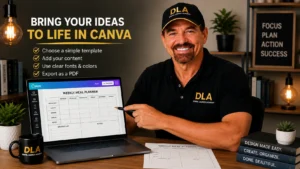
Canva is a beginner-friendly design tool where you can turn your words into a finished printable or digital file. You do not need graphic design skills to make a clean product.
Step 7: Pick a Simple Canva Template
Open Canva and search for a template that matches your product. For example, search “weekly planner,” “checklist,” “workbook,” or “tracker.” Choose a design with plenty of white space and easy-to-read text.
Do not spend hours searching for the perfect template. Pick one that is simple and start. You can change colors, fonts, and wording later.
Step 8: Replace the Sample Text
Click on the sample text in the template. Highlight it, delete it, and paste in the content you created and checked. Work page by page.
Use large, clear fonts. Keep the colors calm and easy to read. If you are unsure, use one main color, one accent color, and black or dark gray text. Simple usually looks more professional than crowded.
Before downloading your product, read every page once more. Look for spelling mistakes, cut-off text, and anything that might confuse a customer. Then download the file in the format you need, often PDF for a printable product.
Your simple action: Create the cover page for your product in Canva. You do not need to finish everything today.
Prompts That Save Time Without Taking Over
ChatGPT is most helpful when it supports your work instead of making every decision for you. Use it to get unstuck, not to create a product you do not understand.
Here are four simple ways to use it during the process:
- Ask for 10 product title ideas that are clear, not clever.
- Ask it to shorten a paragraph so it fits inside a Canva text box.
- Ask for a checklist of pages to review before you sell your product.
- Ask it to write a simple product description based on your finished planner or guide.
Do not share private customer information, passwords, bank details, or personal documents in a chat. Keep your prompts focused on your product idea and general audience.
Now that you’ve learned about ChatGPT for beginners and how to create your first digital product, you’re ready to see how ChatGPT fits into a complete beginner-friendly AI workflow. Continue with our guide, The Complete Beginner’s Guide to AI Tools for Content Creators, to discover how ChatGPT works alongside Canva and other essential AI tools to help you create, organize, and publish digital products with confidence.
Give Yourself Permission to Make a First Draft
Your first digital product does not need to be perfect. It needs to be finished, useful, and easy for someone to understand. The confidence comes after you take action, not before.
At Digital Launch Academy, we teach beginners to build one simple piece at a time because that is how overwhelm starts to fade. Today, your only job is to open ChatGPT, choose one idea, and ask one clear question. That small step can become a product you are proud to share.