A blank Canva page can feel surprisingly intimidating when you are trying to create your first product. The good news is that the top beginner friendly AI tools can help you get past that blank-page feeling. AI is a tool that gives you ideas, words, or simple design help after you type in a clear request. You do not need to be a writer, designer, or tech expert to use it.
For a beginner creating planners, trackers, checklists, or short guides, AI should not do everything for you. Think of it as a helpful assistant. It can help you choose a product idea, write the first draft, and make your work clearer. You stay in charge.
What Makes an AI Tool Beginner Friendly?
A good first AI tool should be easy to open, easy to understand, and useful without a large monthly bill. It should help you take one small step forward instead of giving you more things to learn.
The tools below are especially helpful for digital product creators because they can assist with ideas, wording, design, and proofreading. Most offer a free version or free features, although those features can change over time.
You do not need all seven tools. Start with one or two. A simple product made with a few helpful tools is far better than a perfect plan that never gets started.
Your action: Choose one product you would like to make this week. A weekly meal planner, cleaning checklist, budget tracker, or habit tracker is a great place to start.
7 Top Beginner Friendly AI Tools for Digital Products
1. ChatGPT for Product Ideas and First Drafts
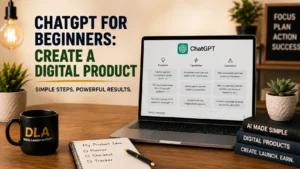
ChatGPT is a writing assistant. You type a question or instruction into a chat box, and it gives you a response. It is useful when you know you want to create a product but are not sure what to put inside it.
For example, you could type: “Give me 20 simple pages for a weekly meal planner for busy families.” It can suggest pages such as a grocery list, recipe notes, a dinner plan, and a pantry inventory.
Then ask for one small piece at a time. Try: “Write 10 friendly prompts for a daily gratitude journal.” Copy the parts you like into a document or directly into your Canva design.
Do not copy every answer without reading it. AI can make mistakes or give ideas that do not fit your audience. Read each response, remove anything that sounds strange, and add your own helpful touch.
Your action: Ask ChatGPT for 15 page ideas for one simple planner or checklist.
2. Canva Magic Write for Writing Inside Your Design
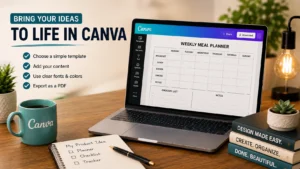
Canva is one of the easiest places to create a printable or digital product. Its AI writing feature, Magic Write, can help when you are already working on a design and need a title, short instruction, or page text.
Open a Canva document or template. Add a text box, then use the writing assistant option if it is available in your account. Type a simple request, such as: “Write a short, encouraging instruction for a water tracker.”
Magic Write can be handy for small sections of text. It works well for planner instructions, journal prompts, checklist labels, and product descriptions. Keep requests short and specific for better results.
If the first answer is too wordy, say: “Make this shorter and simpler.” That one sentence can save you a lot of editing time.
Your action: Create one Canva page with a title, a short instruction, and five checklist items.
3. Canva Magic Design for Simple Page Layouts
Many beginners worry that they are not creative enough to design a product. Magic Design can give you a starting point. You enter a topic or add an image, and Canva suggests designs you can edit.
Start by opening Canva and searching for the type of product you want to make, such as “weekly planner” or “checklist.” You can also use the Magic Design feature and enter a clear idea like “minimal weekly cleaning checklist in soft blue.”
Choose a layout that feels clean and easy to read. Then make it your own by changing the title, colors, fonts, and list items. You do not need to use every design suggestion. The goal is to avoid starting from nothing.
Keep your first product simple. Use one or two fonts and two or three colors. Too many colors or decorations can make a useful planner harder to use.
Your action: Pick one suggested layout and customize only the title, colors, and text today.
4. Grammarly for Clear, Polished Writing
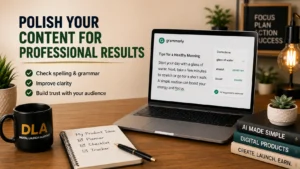
Grammarly checks spelling, grammar, and clarity. This is helpful after you have written your checklist, guide, product description, or planner instructions.
You can paste your text into Grammarly or use it while you write, depending on how you prefer to work. It will point out possible errors and suggest changes. You can accept a suggestion, ignore it, or rewrite the sentence in your own words.
This tool is especially useful if you worry about typos. A small spelling error does not mean your product is bad, but checking your work helps your finished product look more professional and easier to trust.
Do not accept every suggestion automatically. Read the new sentence first. Your words should still sound warm, clear, and natural.
Your action: Proofread the title and instructions on one product page before moving on.
5. Claude for Friendly Guides and Longer Content
Claude is another AI writing tool that can be helpful when you want to create a short guide, workbook, or a set of detailed prompts. It is good at working with longer pieces of writing and can help you organize information into clear sections.
For example, you might type: “Help me outline a five-page beginner guide to starting a weekly budget.” You can then ask it to write each section one at a time using plain language.
This is a better approach than asking for an entire guide in one request. Smaller requests are easier to check, edit, and place into Canva. They also help you stay focused on what your customer needs most.
Remember that a useful guide does not need to be 30 pages long. A five-page guide that solves one small problem can be a wonderful first product.
Your action: Ask Claude to create a simple five-section outline for a guide you could make.
6. Perplexity for Checking Basic Facts
If your digital product includes facts, dates, health information, financial tips, or anything that could affect a person’s decisions, you need to check it carefully. Perplexity can help you research a question and show where information came from.
For a beginner product, keep your topics safe and simple. A household cleaning checklist or reading tracker needs very little fact-checking. But a guide about taxes, medical conditions, legal issues, or investing needs extra care. In many cases, it is best to avoid those topics until you have reliable knowledge or professional guidance.
Use Perplexity to confirm basic information, not to replace your judgment. Read more than one source when accuracy matters. Never present AI-generated information as expert advice.
Your action: Review your product and circle any statement that sounds like a fact. Check it before you publish.
7. Canva Background Remover and Image Tools
A clean cover can make a simple product feel more finished. Canva has image tools that can remove a background from a photo, adjust images, or help you create simple visuals. Some features may depend on your plan, so use what is available to you without feeling pressured to upgrade.
For example, if you are making a recipe planner, you might use one clear photo of vegetables on the cover. If you are making a pet care tracker, you could use a simple dog or cat image. Keep the cover easy to understand at a quick glance.
Be careful with AI-generated images. Look closely for odd hands, unreadable words, or confusing details. For a first digital product, simple shapes, icons, and clean text often work just as well.
Your action: Make a cover page with one clear title and one simple visual.
A Simple Way to Use These Tools Without Getting Overwhelmed
You do not need to jump between seven tabs all day. Use a calm, repeatable process instead.
- Use ChatGPT or Claude to choose one product idea and list the pages it needs.
- Use Canva Magic Design or a Canva template to create the pages.
- Use Magic Write only when you need a title, instruction, or short bit of text.
- Use Grammarly to check your final wording.
- Use Perplexity only when you need to verify a fact.
That is enough to create a useful first product. For example, you could make a 10-page weekly cleaning planner: ask AI for room-by-room tasks, place them into a clean Canva layout, proofread the text, and save it as a PDF.
The tool is not the business. The helpful product you finish is what matters. At Digital Launch Academy, we teach beginners to keep moving with small, clear steps because confidence comes after you create something, not before.
Write Better AI Requests With This Easy Formula
AI gives better answers when your request includes a few details. Tell it what you want to create, who it is for, and how you want it written.
Use this simple formula: “Create [what you need] for [who it is for]. Use [tone or style]. Include [important details].”
Here are three examples you can copy and change:
- “Create 20 checklist items for a weekly home reset checklist for busy working adults. Use simple, friendly language.”
- “Write 15 journal prompts for retirees who want to record family memories. Keep each prompt short and warm.”
- “Give me 10 title ideas for a beginner budget tracker. Use clear words and avoid fancy language.”
If the answer is not right, do not give up. Say what you want changed: “Make it shorter,” “Use easier words,” or “Give me more practical ideas.” AI is a conversation, not a one-time test.
Your action: Copy one prompt above, change it to fit your product idea, and try it today.

Keep Your First Product Small
One of the biggest beginner mistakes is trying to create a huge course, a 50-page ebook, or a planner with every possible page. That can quickly turn an exciting idea into a project you avoid.
Your first product can be a one-page checklist, a five-page mini planner, or a set of 20 journal prompts. Finish it. Save it. Look at it with pride. Then improve it or make the next product.
You are not behind because you are learning slowly. You are building a skill one simple page at a time. Open one tool, create one page, and let that small win show you what you can do next.
Now that you’ve seen some of the best beginner-friendly AI tools, the next step is learning how they work together. Continue with The Complete Beginner’s Guide to AI Tools for Content Creators to discover a complete beginner-friendly workflow for creating digital products with AI and Canva.