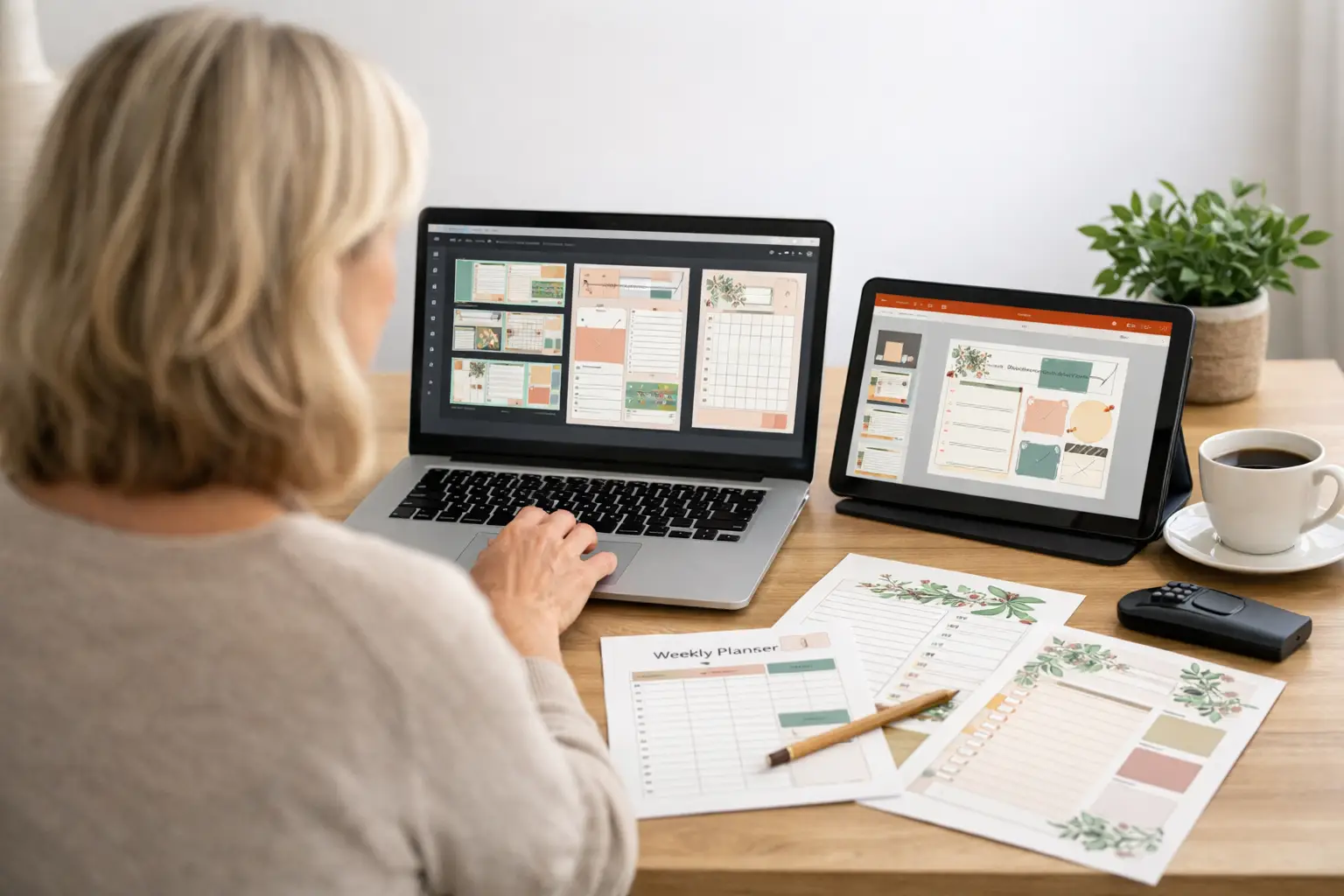
You have a simple printable idea, such as a weekly planner, meal tracker, budget sheet, or cleaning checklist. If you are deciding on Canva or PowerPoint printables for beginners, picking the right tool comes down to whether you prefer ready-made templates or precise page control.
The good news is that both can work. You do not need design experience, expensive software, or a fancy computer to make a useful printable. The best choice depends on what feels easiest for you and what you want to create first.
For most complete beginners, Canva is the simpler place to start. But PowerPoint can be a smart choice if you already know how to use it and want more control over where each item sits on the page.
Canva or PowerPoint Printables: The Simple Answer
Choose Canva if you want ready-made templates, simple drag-and-drop design, and a tool that feels less technical. It is especially helpful when you are creating planners, worksheets, checklists, trackers, invitations, and simple guides.
Choose PowerPoint if you already have it, feel comfortable using it, and like placing boxes, text, and lines exactly where you want them. It can be useful for simple printable pages with tables, columns, and repeated layouts.
When deciding between Canva or PowerPoint printables, neither tool is universally ‘better’ for every person. A printable buyer usually cares more about whether the page is helpful, clear, and easy to print than which program you used to create it.
Your action: Pick one tool for your first product. You can always try the other one later.
Why Canva Is Usually Easier for First-Time Creators
Canva is an online design tool. You can use it in a web browser or through its app. Its free version gives you enough to create many basic printables.
The biggest benefit is that you do not have to begin with a blank page. Canva has layouts for planners, worksheets, calendars, checklists, and more. You can choose a design you like, then change the words, colors, fonts, and pages to fit your idea.
What Canva makes simple
With Canva, you can:
- Start with an A4 or US Letter page size in a few clicks
- Add text boxes, lines, shapes, and checkboxes by dragging them onto the page
- Copy one finished page to make matching pages quickly
- Use simple font and color combinations without guessing
- Download your finished file as a print-ready PDF
For example, if you want to make a weekly meal planner, search Canva for “meal planner.” Choose a clean layout, remove anything you do not need, and change the headings to “Breakfast,” “Lunch,” “Dinner,” and “Shopping List.” That is a real starting point. You are not cheating by using a layout. You are saving time and learning as you go.
Watch for free and paid items
One small thing can confuse beginners in Canva: some photos, graphics, and templates are marked as paid. If you use a paid item without a paid plan, Canva may ask you to pay before downloading.
To avoid surprises, look for items labeled “Free.” Better yet, keep your first printable simple. Use text, plain lines, boxes, and a few basic shapes. A useful budget tracker does not need fancy decorations.
Your action: Open Canva and search for one type of printable you would enjoy making. Do not design yet. Just notice which layouts feel clear and easy to read.
When PowerPoint Is a Good Choice
PowerPoint is not only for slide presentations—it is also a surprisingly powerful tool for creating Canva or PowerPoint printables with precise grid layouts. Many people already know how to add text, insert shapes, and move items around in PowerPoint, so it may feel familiar.
A PowerPoint file can be set to the size of a standard page. From there, you create your printable with text boxes, lines, tables, and shapes. When you are finished, save or export it as a PDF for printing.
What PowerPoint does well
PowerPoint can be a good fit when you want a clean, structured design. It is especially useful for trackers, forms, classroom sheets, and planner pages that have grids or tables.
For instance, you could make a water tracker by adding a title, eight small circles, and a short instruction that says, “Color one circle after each glass of water.” You can copy that page, change the title, and create a habit tracker to match.
PowerPoint also gives you close control over placement. If you want every line and box to be in an exact spot, you may like that control.
What may feel harder in PowerPoint
PowerPoint does not give beginners the same large library of ready-made printable layouts that Canva does. You may spend more time building your page from scratch. It can also be harder to create a polished look if choosing fonts and colors feels stressful.
You may need a Microsoft account or a paid version of PowerPoint, depending on what you already have. The free web version may have fewer features than the desktop version.
Your action: If PowerPoint is already on your computer, create one blank page and practice adding a title, a text box, and a shape. That is enough for today.
How to Choose the Right Tool for Your First Printable
Do not make this decision bigger than it needs to be. Your first goal is not to build a huge shop with 50 products. Your goal is to finish one useful printable.
Comparing Canva or PowerPoint printables is less about which program is objectively ‘best’ and more about which workflow helps you complete a finished PDF fastest.
Use these three questions to decide:
- Do you want a template to guide you? Choose Canva. It gives you a starting point when a blank page feels intimidating.
- Do you already know PowerPoint? Use PowerPoint if it feels comfortable. Familiar tools reduce frustration.
- What are you making? Canva is great for attractive planners and worksheets. PowerPoint is great for clean forms, tables, and simple trackers. Either one can make both.
The fastest path is usually the one that helps you keep going. Do not switch tools every day looking for the perfect answer. Give one tool a fair try for one small product.
Step-by-Step: Make Your First Printable in Canva
If you choose Canva, start with a one-page product. A daily checklist, simple spending tracker, or weekly to-do list is perfect.
Step 1: Choose one clear problem to solve
Do not try to make a 50-page planner first. Think about a small problem someone has.
Maybe they forget what groceries to buy. Maybe they want to track bills. Maybe they need a simple morning routine for their children. When creating Canva or PowerPoint printables for beginners, a single page that solves one clear problem is far more valuable than a complex, unfinished planner.
Write your idea in one sentence. For example: “This printable helps busy adults plan dinners for the week.”
Step 2: Create the right page size
In Canva, choose “Create a design” and select US Letter if you are selling mainly to US customers. This is the standard 8.5 by 11 inch paper size used in many home printers.
You can also make an A4 version later for buyers in other countries. For now, keep it simple and make one version well.
Step 3: Build a clean layout
Add a clear title at the top. Then add only the sections your customer needs. For a meal planner, that may be seven days of the week plus a grocery list area.
Leave enough blank space for writing. This matters more than adding lots of decorations. A printable should feel easy to use with a pen.
Choose one or two fonts. Use a dark text color so it prints clearly. If you use colored boxes, choose light colors that will not use too much printer ink.
Step 4: Check the page before downloading
Look closely at every word. Check for spelling mistakes, tiny text, crowded boxes, and lines that are too light to see.
Ask yourself one simple question: “Could someone use this without me explaining it?” If the answer is yes, you are on the right track.
Step 5: Download as a PDF
Choose “Download,” then select “PDF Print.” This usually gives you a high-quality file for home printing. Save the file with a clear name, such as “Weekly-Meal-Planner.pdf.”
Print one test copy if you can. Seeing the page on paper helps you spot problems that are easy to miss on a screen.
Your action: Finish one single printable page this week. A finished simple page teaches you more than an unfinished perfect idea.
Step-by-Step: Make Your First Printable in PowerPoint
If PowerPoint feels more familiar, use the same small-product approach.
Step 1: Set up the page
Open a blank presentation. Find the slide size settings and choose a custom size of 8.5 by 11 inches for a US Letter printable. Choose portrait for a tall page or landscape for a wide page.
Step 2: Add your sections
Insert a text box for the title. Then use shapes, lines, or a table to create areas for writing. Keep the margins clear so nothing gets cut off when someone prints the page.
Step 3: Make matching pages faster
Once you create one page you like, duplicate it. Change the heading or sections to create a small matching set. For example, one page could be a daily habit tracker and the next could be a weekly habit tracker.
Step 4: Save as a PDF
When your page is ready, use “Save As” or “Export” and choose PDF. Open the PDF before sharing or selling it. Make sure the text is sharp and no boxes have moved.
A Few Simple Rules Before You Sell
Whether you use Canva or PowerPoint, your printable should be your own useful product. Add your own wording, organization, and purpose. Do not simply download someone else’s design and sell it as your own.
If you plan to commercialize your Canva or PowerPoint printables, be mindful of stock photos, graphics, and template licensing. Read the tool’s current license rules before selling anything. Simple original layouts using your own text, lines, and shapes are often the easiest place for beginners to begin.
Also, be honest in your product description. Tell buyers what they receive, such as one PDF file, how many pages it includes, and whether it is designed for US Letter paper. Clear details help buyers feel confident.
You do not need to become a designer before you start. You just need to make one helpful page, test it, and improve it. Digital Launch Academy teaches this same steady approach: one simple step at a time, with no need to figure out everything at once.
Your first printable does not have to be fancy. It just has to help someone. Creating Canva or PowerPoint printables for beginners is all about building momentum, so choose one tool today, make a single page, and let that finished product boost your confidence.
If you’ve decided Canva is the right choice, see my complete guide on How to Make Digital Products With Canva and AI.

Don’t Know What to Create?
Most beginners don’t fail because they lack talent.
They fail because they’re overwhelmed by too many ideas.
Download the Free Niche Planner Checklist and discover a digital product idea you can actually build.
